Free / No registration
Icons byFox — from a symbol to app assets
The generator helps you create Android, iOS and website icons from one composition. Start with text, a built-in clipart or your own image. Set the background, scale and position, compare platform previews and download your files.
Creating, previewing and basic exports are free and do not require an account. Selecting your own artwork and rendering exports happen locally in your browser. The service also uses network connections — we explain their scope in Icons data flow overview.
Launch icon generator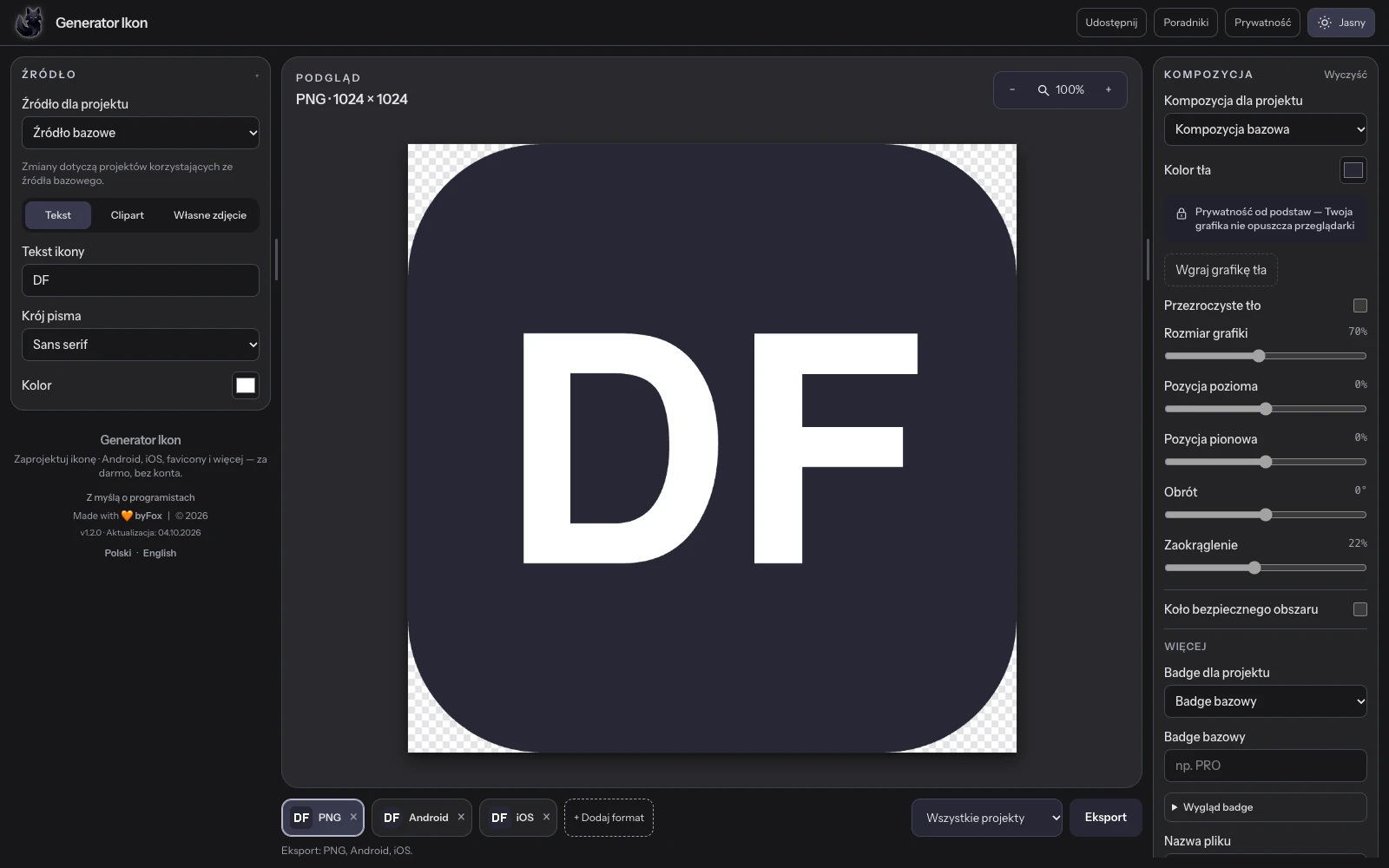
Your first icon, step by step
For your first attempt, the text “DF” and a solid background are enough. You do not need a finished logo or an image file.
- Choose a source. Open the generator, choose Text and enter DF. For your own logo, choose an image from your device; use a transparent file for a symbol without a rectangular background.
- Arrange the composition. Choose contrasting background and symbol colours. Scale the text down to leave space around the edges. Check legibility in the small preview too.
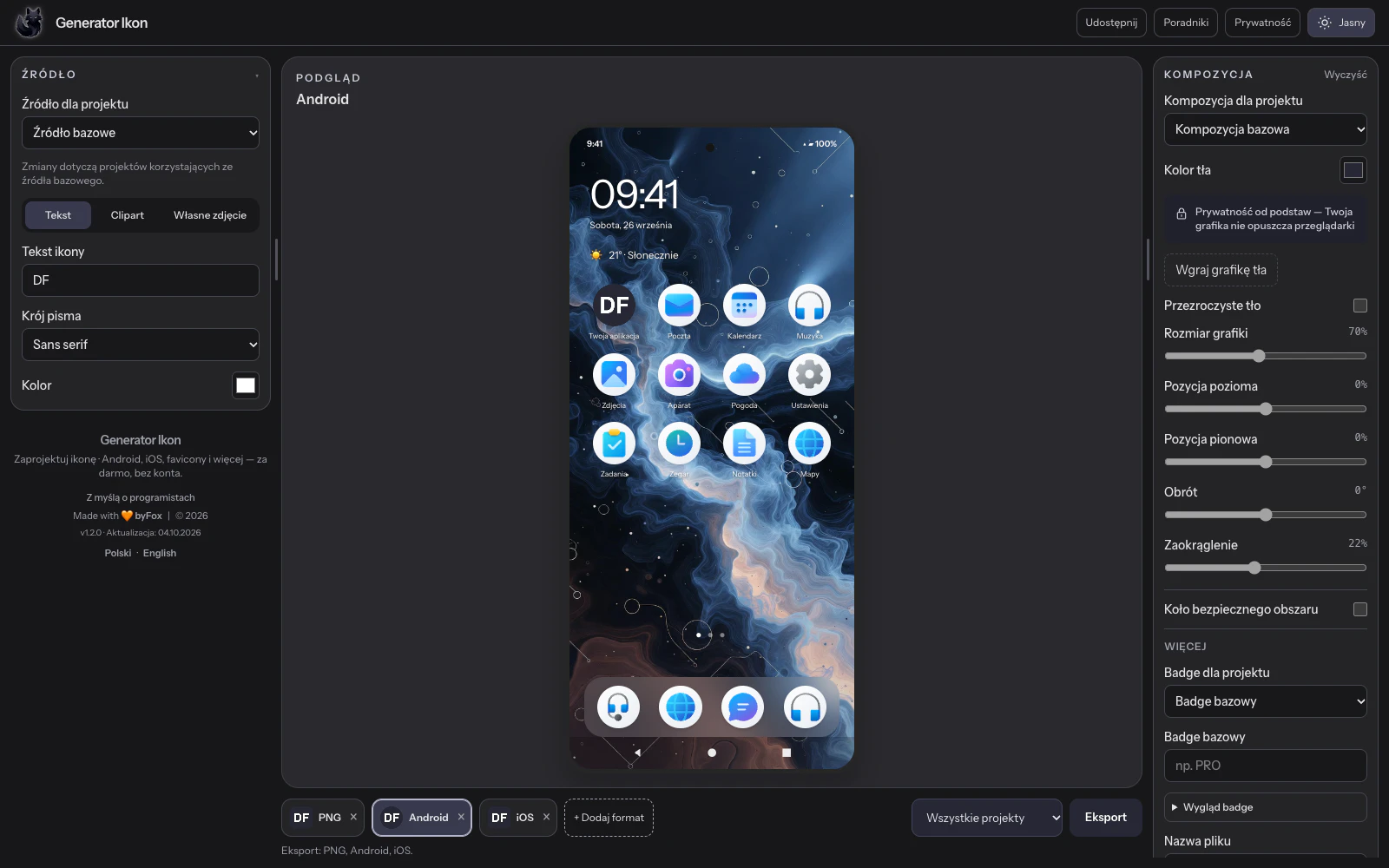
- Choose a platform. Compare the Android, iOS or web appearance. On Android, check cropping by different launcher masks; a square preview alone is not enough.
- Download the result and save your project. Choose an export for your platform or a single PNG. Also use “Save project” to download a ZIP that lets you return to editing with your own artwork.
Do not confuse saving a project with installing icons. The project archive is for further editing in Icons; exported assets must be integrated into your app or website.
Which export should you choose?
| Purpose | Output | Next step |
|---|---|---|
| Android launcher | Resources res, icons and XML | Installing adaptive icons |
| iOS / iPadOS app | AppIcon.appiconset and Contents.json | Import into Xcode |
| Website / PWA | ICO favicon, PNG and manifest icons | Adding a favicon and manifest |
| Single image | PNG at your chosen size | Use the file where a single image is required, rather than an entire platform asset set. |
An Android notification icon needs a separate monochrome symbol on a transparent background. A colourful launcher icon is not a suitable substitute. See how to prepare a notification icon.
What should you check before publishing?
The generator preview shows appearance, but does not check your app configuration. After export, install the assets, run the app on a device or open the website and check the result. Do not manually add rounded corners or shadows where the system applies them.
Use your own artwork or materials licensed for your intended use. The generator does not grant rights to an uploaded logo. A saved project ZIP may contain source materials — check its contents before sharing it.